ipywidgets_toggle_buttons




Table of Contents
Short Overview.
ipywidgets_toggle_buttons is a simple python package(py>=3.6) with more toggle buttons for ipywidgets
Installation via pip:
pip install ipywidgets_toggle_buttons
Long Overview.
This python package consists of other ToggleButtons classes
ToggleButtonsAutoSize - To adjust buttons size to show full their’s description
MultiToggleButtons - To select a few options at once with usual ToggleButtons interface
ToggleButtonsWithHide - ToggleButtonsAutoSize + Hidden options
MultiToggleButtonsWithHide - MultiToggleButtons + Hidden options
Simple Usage examples
ToggleButtonsAutoSize
Create and show this widget
from ipywidgets_toggle_buttons import ToggleButtonsAutoSize
wid = ToggleButtonsAutoSize(options=[str(i) for i in range(10)])
wid  # OR wid.box_widget

print(wid.value)  # "0"
print(wid.options)  # ('0', '1', '2', '3', '4', '5', '6', '7', '8', '9')
print(wid.layout.width)  # '100%'
wid.options = list(wid.options) + ["ajhfkaghnkandjgnakdn"]

MultiToggleButtons
Create and show this widget
from ipywidgets_toggle_buttons import MultiToggleButtons
wid = MultiToggleButtons(
    options=[str(i) for i in range(10)],
    max_chosen_values=2,
)
wid  # OR wid.box_widget

def on_value_change(_):
    print("pew")

wid.observe(on_value_change, 'value')
print(wid.value)  # ()
wid.value = ["2", "8"]  # "pew"

ToggleButtonsWithHide
Create and show this widget
from ipywidgets_toggle_buttons import ToggleButtonsWithHide
wid = ToggleButtonsWithHide(
    value="0",
    options_visible=[str(i) for i in range(10)],
    options_hidden=[str(i) for i in range(5, 15)],
)
wid  # OR wid.box_widget

After pressing the button Show Hidden Options
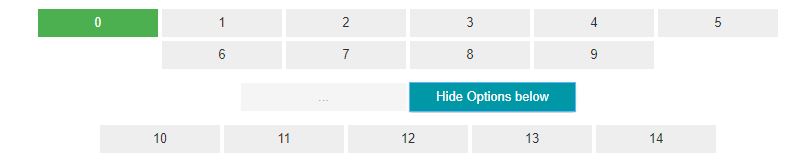
Select value 12
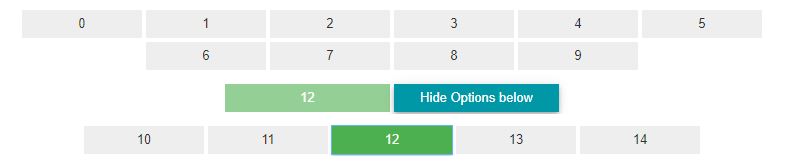
And hide Hidden options

print(wid.value)  # "12"
wid.options_visible = [str(i) for i in range(2)]
wid.options_hidden = [f"another {i}" for i in range(2)]
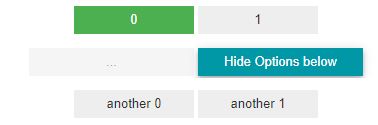
MultiToggleButtonsWithHide
Create and show this widget
from ipywidgets_toggle_buttons import MultiToggleButtonsWithHide
wid = MultiToggleButtonsWithHide(
    options_visible=[str(i) for i in range(10)],
    options_hidden=[str(i) for i in range(5, 15)],
    max_chosen_values=4,
)
wid  # OR wid.box_widget

After pressing the button Show Hidden Options
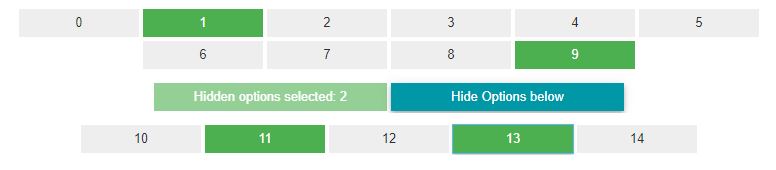
Select a few options and hide all Hidden options

print(wid.value)  # ('1', '9', '11', '13')
print(wid.options_hidden)  # ('10', '11', '12', '13', '14')
If at any moment you want to change the options then it can be done like shown below
wid.options_visible = [str(i) for i in range(2)]
wid.options_hidden = [f"another {i}" for i in range(2)]
Advanced Usage examples
How to add this widgets into the Box, HBox, VBox
from ipywidget import Box

wid = AnyToggleButton(
    ...,
    func_to_get_option_width=func_new_width
)

wid_box = Box([])

def func_new_width(iter_options):

    int_max_width = 0
    for option in iter_options:
        cur_but_width = 8 * len(option)
        if cur_but_width > int_max_width:
            int_max_width = cur_but_width
    return int_max_width
How to access all options of the widget
Use attribute .widget to get full control over shown widget
wid = AnyToggleButton(...)
wid.widget
Links
Project local Links
Contacts
License
This project is licensed under the MIT License.